
Frequently asked questions
My account is blocked: "Subscription expired"
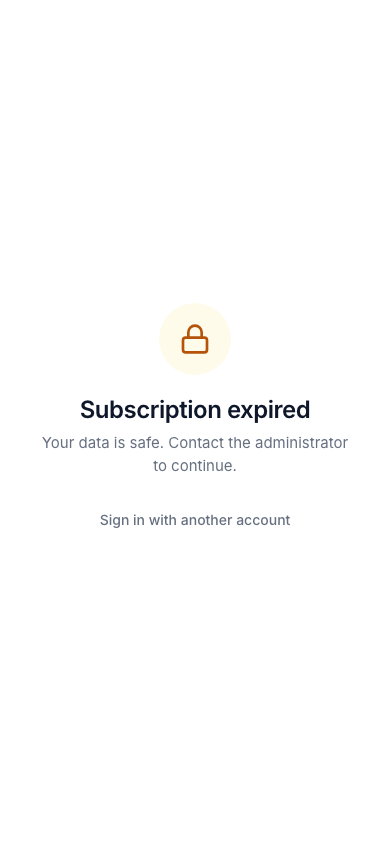
If your business is blocked, the "Subscription expired" screen appears when you sign in. It says "Your data is safe. Contact the administrator to continue." All the data is in place: blocking does not delete it. To continue working, contact the administrator. If you have another account, tap Sign in with another account.
My account is deactivated
If you see "Your account has been deactivated. Contact the business owner" when signing in, the owner has switched you to deactivated in the staff list. Only the owner can make you active again.
I forgot my password
On the Sign in screen tap the Forgot your password? link: enter your phone number, type the code from Telegram, then enter the new password twice — the app signs you in by itself. About the code: The Telegram code. If there is no such link:
- If you are Staff, tell your owner: they tap your name in Menu → Staff, write a new password in the New password (optional) field and tap Save.
- If you know your old password, you can change it on the Profile page with New password.
- If you are the Owner and there is no link, there is no way to reset the password inside the app.
The password must be at least 6 characters.
The code does not arrive in Telegram
- If the Connect Telegram block appeared, tap Open Telegram and, in the bot, Share phone number: the code arrives after that. More: The Telegram code.
- Check that you shared your own number with the bot: the number in the app must be the one of your Telegram account.
- Resend code works when the countdown ends (60 seconds). You cannot request more than 5 codes an hour.
- If "Wrong code" appeared 5 times, the code is cancelled — request a new one.
The photo will not upload
The rules are the same for the profile photo, the business logo and the customer's passport photo: JPG, PNG or WebP, size up to 5 MB. If it does not fit the rules, you see "Photo not uploaded. JPG, PNG or WebP, up to 5 MB". If your photo is another type (for example, HEIC), save it as JPG and upload it again. At most 2 passport photos can be attached to a customer.
The internet went down
If the internet goes down, the message "No internet connection" appears on the screen. The app does not save changes offline: a Save or Rent you tap with no connection does not go through, and "Something went wrong. Please try again" appears. When the internet is back, do the action again. Check from the list that the work was done.
Two devices at the same time
You can work with one account on a phone and a computer at the same time: the data is stored in one place. If two staff members try to give out one product at the same time, the second one sees "Rented — …". If the page shows old data, open the page again.
Who sees what
| Feature | Owner | Staff |
|---|---|---|
| Renting out, taking back | yes | yes |
| Accepting payments, adding extra charges, changing the return date | yes | yes |
| Refunding the overpaid amount | yes | yes |
| Customers: add, edit | yes | yes |
| Viewing products, printing QR labels | yes | yes |
| Sending to repair, updating a repair card | yes | yes |
| Total debt on the home page | yes | — |
| Adding, editing and deleting products, prices, Item, Write off | yes | — |
| The Categories and Masters lists | yes | — |
| Cancelling a payment, deleting an extra charge | yes | — |
| Reports | yes | — |
| Staff: add, give a password, delete | yes | — |
| Changing the Company details | yes | — |
Sections that a staff member does not need are not shown in the menu. More: Staff and roles.
Why can I not delete this?
To keep the history intact, the app does not let you delete related data:
| What | When it cannot be deleted | What to do |
|---|---|---|
| Product | It was rented out at least once, or it has a repair card | The product stays; you can Write off an item |
| Customer | There is rental history | The customer stays |
| Category | There are products in it | First move the products to another category |
| Master | There is an active repair card | Delete when the cards are finished |
| Staff | There is rental or payment history | Switch to deactivated |
| Payment | Never (it cannot even be edited) | Cancel and enter it again |
The camera does not open
To scan a QR or barcode, allow the browser to use the camera. If you have not allowed it, turn on the camera for the browser in your phone's settings. If the camera does not work, type the code by hand using Search by code, for example GN-0002.
The app shows in another language
Change the language in Menu → Language. On the computer: Language in the user menu. Only the app's own text is translated: the names of products, customers and categories stay the way you wrote them.