
Customers
A customer is a person or an organization that rents from you. The customer list is in Menu → Customers.
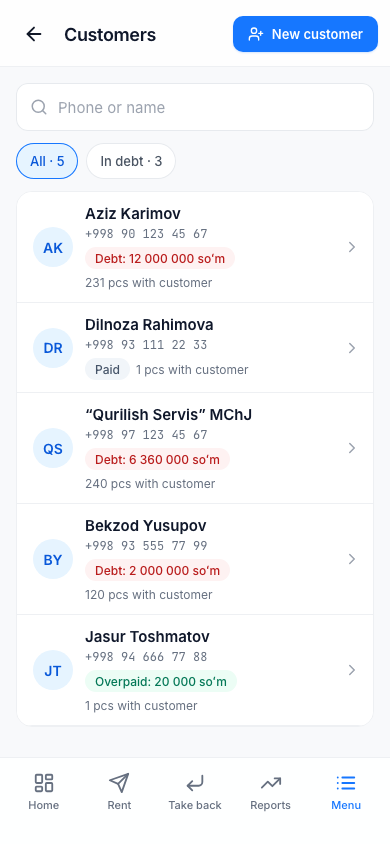
Each row shows the customer's name, phone number and balance:
| Badge | Meaning |
|---|---|
| Debt: … | The customer owes you |
| Overpaid: … | The customer has overpaid |
| Paid | No debt and no overpayment |
A row also shows "N pcs with customer" — how many products the customer has right now. To search, type in the Phone or name field. The In debt · N button shows only the customers who have debt.
Adding a customer
Usually a customer is added by phone number while renting out: Renting out. You can also add one in advance:
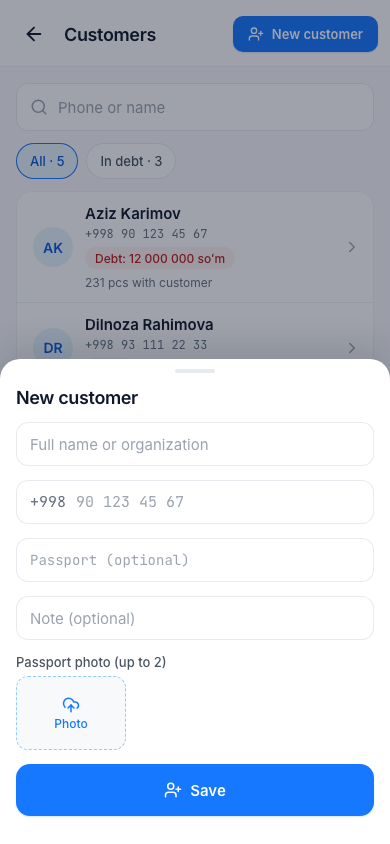
- On the Customers page, tap the New customer button.
- Enter the Full name or organization and the phone number.
- If you want, fill in Passport (optional) and Note (optional).
- In the Passport photo (up to 2) section, add a photo of the passport or ID card with the Photo button. Photo type: JPG, PNG or WebP, up to 5 MB.
- Tap the Save button.
One phone number — one customer. If the number belongs to another customer, the app shows "This number belongs to {name}".
The customer card
Tap a customer and their card opens: passport details and photos (tap to enlarge), a note, the balance and three lists:
- Items with the customer — what the customer has right now; overdue ones are red;
- Rental history — all rentals. Tap one and the rental page opens;
- Payments — the customer's payments.
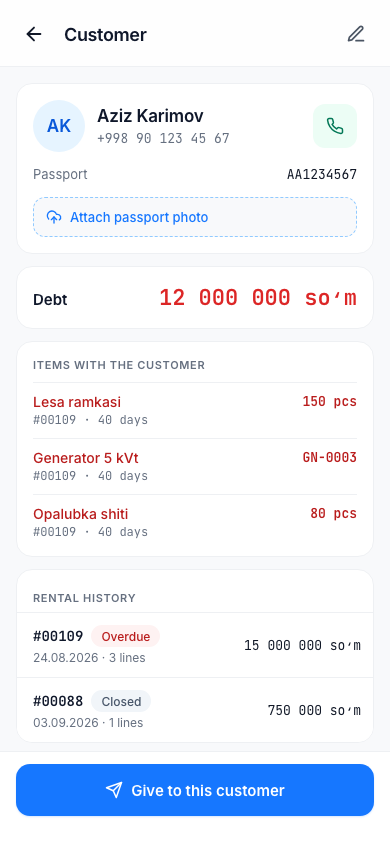
The Give to this customer button at the bottom starts a new rental with this customer. If there is no passport photo, the Attach passport photo button appears.
Edit — change the details. Delete — delete the customer; it is possible only if the customer has no rental history yet: "This customer has no rental history. This cannot be undone."
Tip
If you save the passport photo in advance, it makes things easier when a customer disappears without returning a product.