
Repairs
A damaged product is sent to repair. A product in repair is not rented out, and it shows as In repair in the stock count.
The repair board
For staff, Repairs is a button at the bottom. The owner opens it from Menu → Repairs.
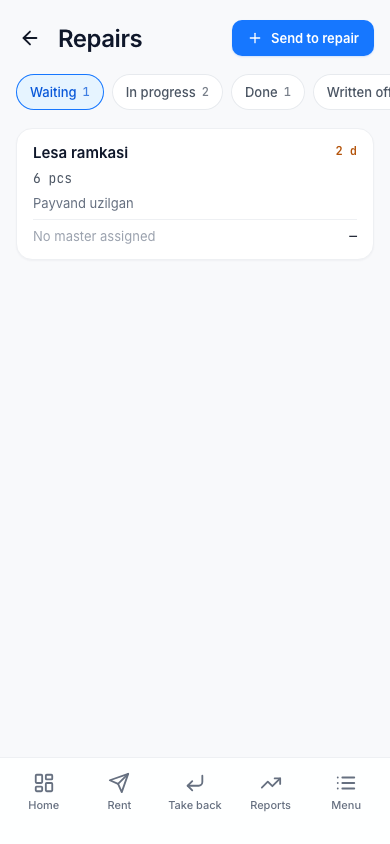
The board has four stages, and each shows the number of cards:
| Stage | Meaning |
|---|---|
| Waiting | Accepted for repair, not started yet |
| In progress | The master is working |
| Done | Repaired — the product is Free again |
| Written off | Could not be repaired — the product is written off as lost |
Each card shows the product name, how many days it has been in repair, its code or count, the master and the cost. The oldest ones are at the top.
How a card appears
- Automatically. When you mark a product as Damaged while taking it back, a card opens by itself in the Waiting column. The card shows the source rental ("Source rental …"). Taking back.
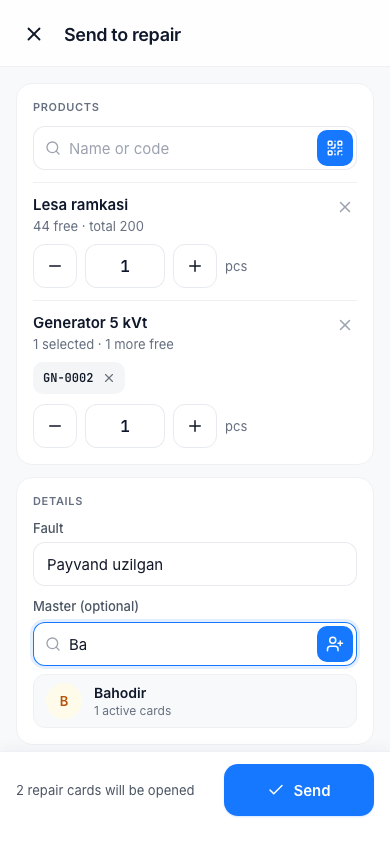
- By hand. You can also send a free product to repair: Send to repair.
Sending by hand:
- On the Repairs page, tap Send to repair.
- In the Products section, find the product by Name or code, or scan it. Only free items can be chosen ("Only N free").
- Write the Fault, for example "weld is broken".
- If you want, choose the Master (optional) or add a New master.
- At the bottom, check the note "N repair cards will be opened" and tap Send.
Updating a card
Tap a card and its window opens:
- Stage — move the card to the next stage;
- Master — choose a master or Add a new master;
- Cost — the price of the repair;
- Note.
After changing, tap Save.
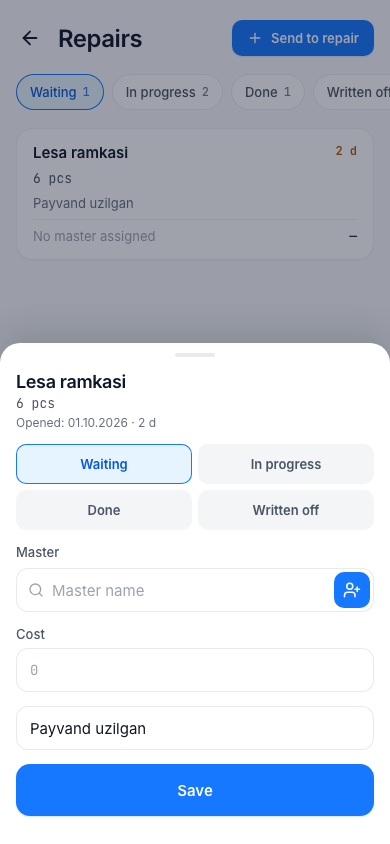
If you move it to Done, the product is ready to be rented out again. When you move it to Written off, the app asks: "Write off?" — "The product is marked as beyond repair and removed from stock." This is the final decision.
Masters Owner only
The list of masters: Menu → Masters.
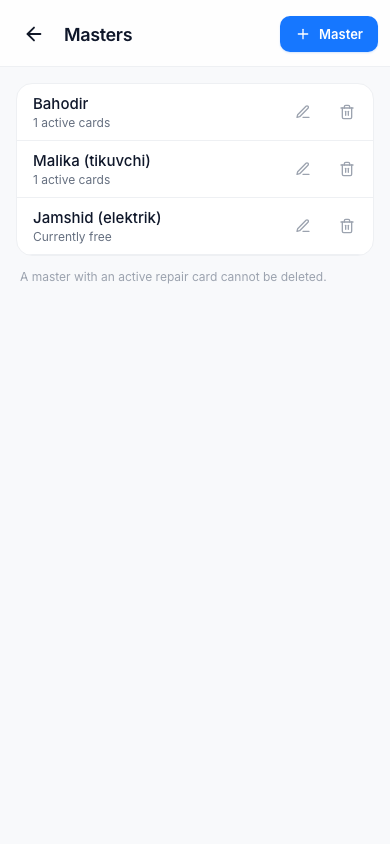
- Add a new master with the Master button (New master → Name → Add).
- Edit on a row changes the master's name; the name on the repair cards is updated too.
- A row says "N active cards" or "Currently free".
- Delete: you cannot delete a master who has active cards ("The master has N active cards").
Staff do not see the list of masters, but when sending to repair or editing a card they can add a New master.