
Payments and debt
Every payment is recorded against one rental. You work with all payments on the rental page.
Opening the rental page
The rental page opens from these places:
- a row in the Overdue list on the Home screen;
- the Rental history on the customer card;
- the View rental button after giving out or taking back;
- the Rental history on the product page.
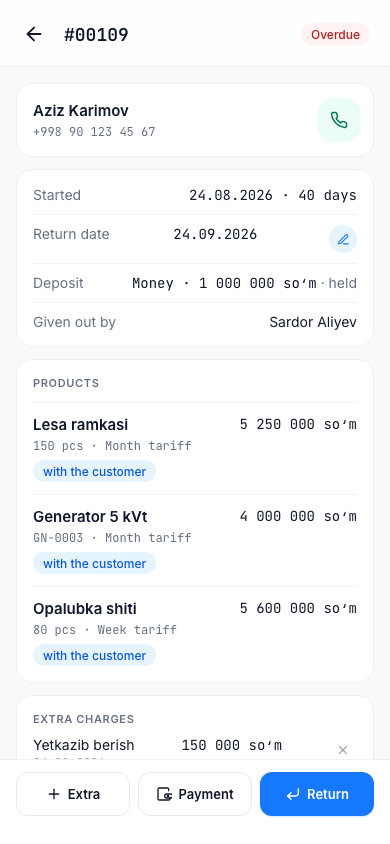
The page shows the rental number and status (Ongoing, Overdue, Closed), the customer, the Started date, the Return date, the Deposit, Given out by, Products, Extra charges, Payments and the final amounts. At the bottom there are three buttons: Extra, Payment, Return.
What the balance means
The customer's balance for a rental is calculated like this:
Rental fee + Extra − Discount − Paid − From deposit
The result can be one of three kinds:
| Result | Meaning |
|---|---|
| Debt | The amount calculated is more than what was paid — the customer owes you |
| Overpaid | The customer paid more than the amount calculated — you owe the customer |
| Paid | The accounts are equal |
The balance is always recalculated for the current situation. While the product is with the customer, the Rental fee grows every day, so the debt grows too.
The customer's total debt is shown on the customer card and in the Customers list (In debt · N). The owner sees all debt on the Total debt counter on the Home screen and in the Unpaid report.
Accepting a payment
- On the rental page, tap the Payment button.
- In the Accept payment window, the Current debt is shown at the top.
- Enter the Amount (it is pre-filled with the debt amount).
- Choose the method: Cash, Card, Transfer, Click, Payme.
- If needed, write a Note (optional).
- Tap the Accept button.
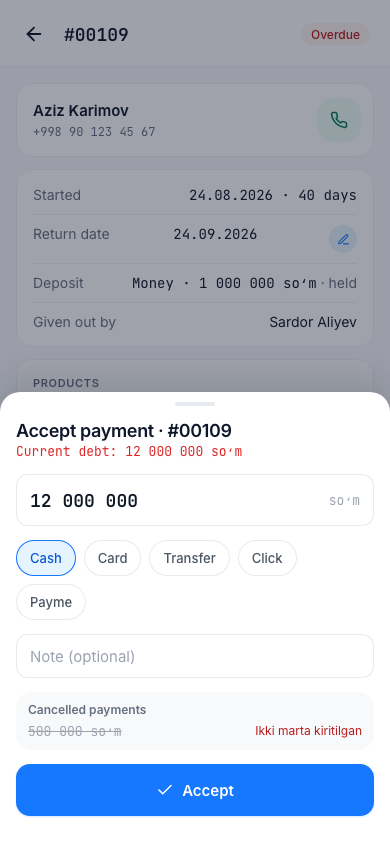
If there is no debt, it says "No debt". The payment appears in the Payments list. Even if the rental is closed, you can accept a payment for the remaining debt.
Tip
If the customer pays more than the debt, the extra amount shows as Overpaid — the money is not lost. You can return it to the customer (see below).
Cancelling a wrong payment Owner only
A payment cannot be edited. If it was entered by mistake, cancel it and enter the correct one again.
- In the Payments list, tap Cancel on the row of the payment.
- In the "Cancel this payment?" window, write the Reason ("Entered by mistake" is already there).
- Confirm with Cancel payment.
The amount goes back to the debt. A cancelled payment is not deleted: it stays struck through and is marked "Cancelled: reason". This way the history of the accounts is kept.
Staff cannot cancel a payment — tell the owner.
Extra charge
You can add an extra charge for delivery, cleaning or damage.
- On the rental page, tap Extra.
- Choose a ready reason — Delivery, Cleaning, For damage — or write the Reason yourself.
- Enter the Amount and tap Add.
An extra charge increases the customer's debt. If one was added by mistake, only the owner can delete it Owner only: ✕ next to the row → "Delete the extra charge?" → Delete.
Changing the return date
On an open rental, tap the pencil icon next to Return date, write the new date in the form dd.mm.yyyy and tap Save. You cannot change the date to one before today. "The rental fee keeps accruing daily" — the date does not affect the price, it only changes when the rental is marked "Overdue".
Refunding the overpaid amount
If the customer overpaid on a closed rental, the page shows "The customer has overpaid" and the Refund the excess: … button. Tap the button and confirm ("Refund the excess?"): the amount is returned to the customer in cash and the balance becomes 0.