
Taking back
When the customer brings the product, you close the rental, or close it partly, with Take back. The app records damage, loss, discount and deposit by itself.
1. Find the rental
Tap the Take back button at the bottom. The Active rentals · N list appears.
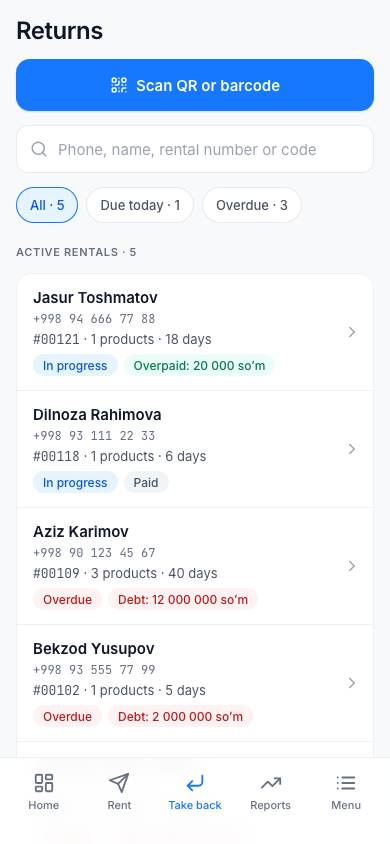
Ways to find it:
- type in the Phone, name, rental number or code field;
- scan the product's label with the Scan QR or barcode button. If the product is not rented out, it says "{code} is not rented out right now";
- filter with the buttons: All · N, Due today · N, Overdue · N.
If nothing is found: "No active rental found — check the number or scan the QR code".
Tap a rental row and the return screen opens.
2. Mark the products being returned
In the Products section, each product has a check mark next to it. Mark the ones being returned today.
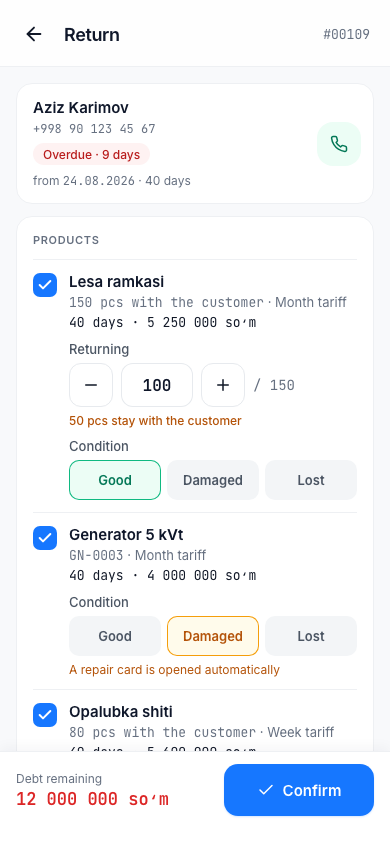
Partial return. For a product tracked by quantity, use − and + in the Returning field to enter how many are coming back. The rest stay with the customer: "N pcs stay with the customer". The rental stays open and the fee keeps being calculated for the remaining products. Rows that were fully returned earlier are hidden ("N lines were fully returned earlier").
Condition. For each product being returned, choose:
| Condition | What happens |
|---|---|
| Good | The product becomes Free again |
| Damaged | A card is opened automatically on the Repairs board for the product: "A repair card is opened automatically". It must leave repair before it can be rented out |
| Lost | The product is written off as lost, and the "Payment if lost" set on the product is added to the bill: "Payment if lost: …" |
3. Check the summary
The Summary section shows the money:
- Rental fee (to date) — the calculated rental fee;
- Extra charges — additions such as delivery and cleaning;
- Discount — if you want, enter a discount amount. It cannot go above the debt: "Discount cannot exceed the debt: max. …";
- Paid — the amount the customer paid earlier;
- From deposit — the deposit applied to the debt;
- Paying now — the money taken from the customer at this moment.
At the bottom is the result: Debt remaining, Overpaid (the customer paid too much) or Fully paid.
4. Deposit
If the rental has a deposit, the Deposit section appears:
- Money deposit: choose Return to customer or Apply to debt. If you apply it to the debt, the deposit amount is subtracted from the customer's debt.
- Document deposit ("Document · Passport AA1234567"): "The document is returned to the customer".
The deposit is kept until all products are returned: "The deposit is kept until all products are returned".
5. Payment and confirmation
If the customer pays the debt now, in the Payment section enter the Amount (or tap the Full debt button) and choose the method: Cash, Card, Transfer, Click, Payme.
When everything is ready, tap Confirm. If nothing is marked, the button says Select a product.
Warning
The app has no button to cancel a confirmed return. Check the condition, discount and deposit beforehand.
Result
The Return accepted screen says what happened.
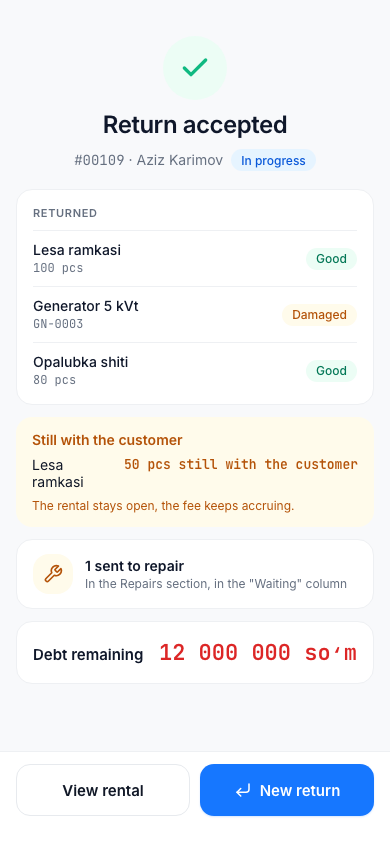
- Returned — the products that came back and their condition;
- Still with the customer — the ones that have not come back yet. "The rental stays open, the fee keeps accruing.";
- "N sent to repair" — the damaged ones. You find them in the Repairs section, in the Waiting column;
- "… added to the account for the loss" — the fee for a lost product;
- a note about the deposit ("Deposit … applied to the debt" or "Deposit … returned to the customer");
- Debt remaining — if there is remaining debt.
Buttons: View rental and New return.
When all products in the rental are back, the rental becomes Closed. If debt remains, it is still visible after closing, and you can accept a payment.