
Using the computer
The computer app (panel.ijarachi.app) works with the same account and the same data as the phone app. It is made for a big screen: tables, side windows and reports are visible at a glance. The phone number and password are the same. The sign-in and sign-up screens look like the ones on the phone: Getting started.
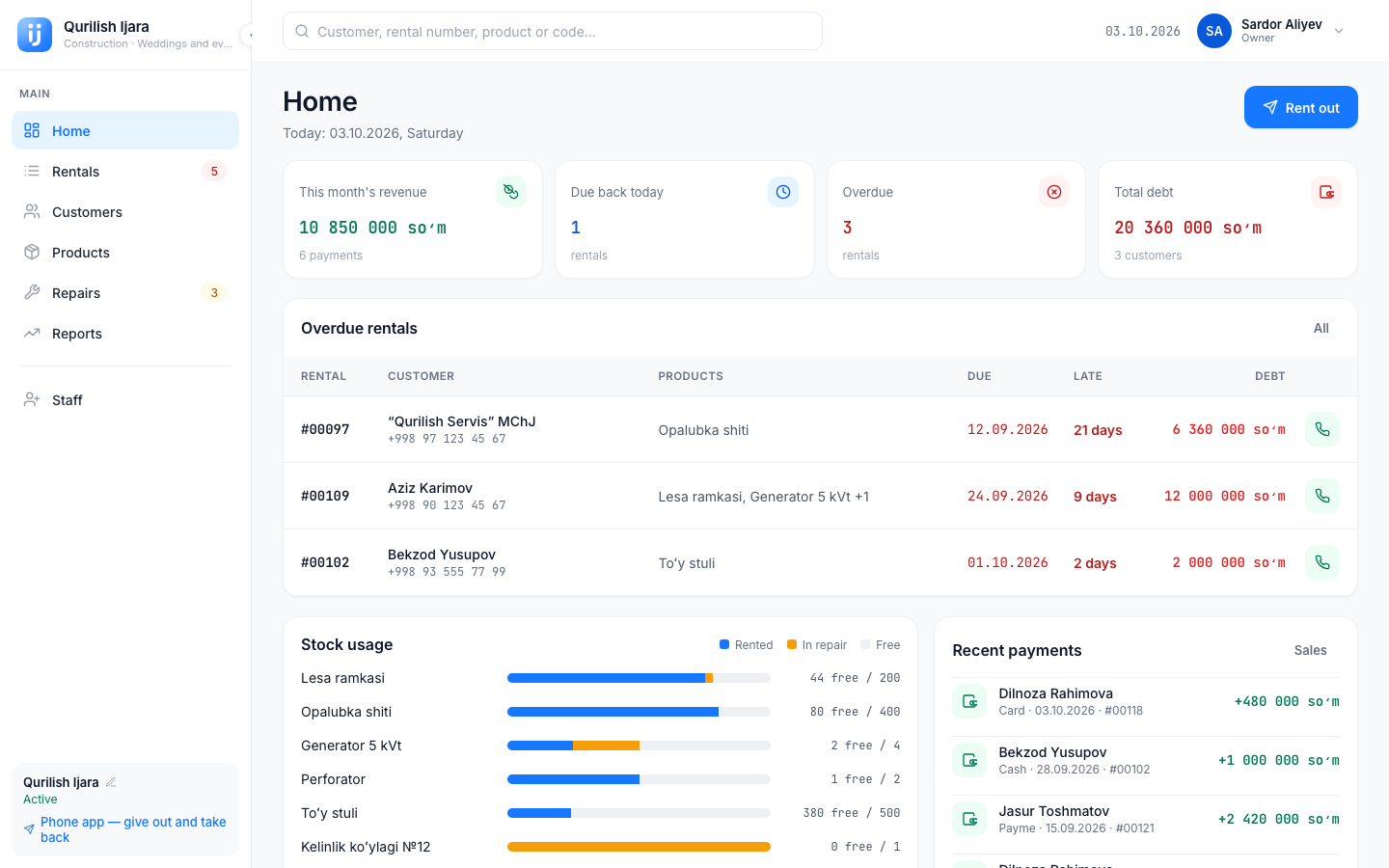
The left menu and the top bar
Left menu: Home, Rentals, Customers, Products, Repairs, Reports, Staff. Reports and Staff are visible only to the owner. The number next to Rentals and Repairs is the number of active rentals and repair cards. To make the menu narrower, tap the Collapse panel button. The card at the bottom has the business name, the Active status and a Phone app link.
Top bar: a search field ("Customer, rental number, product or code…"), the date and the user button.
- Search. Type a customer, rental number, product or code: the results are grouped by Customer, Rental, Product. If there is nothing: "Nothing found".
- User menu (the button with your name):
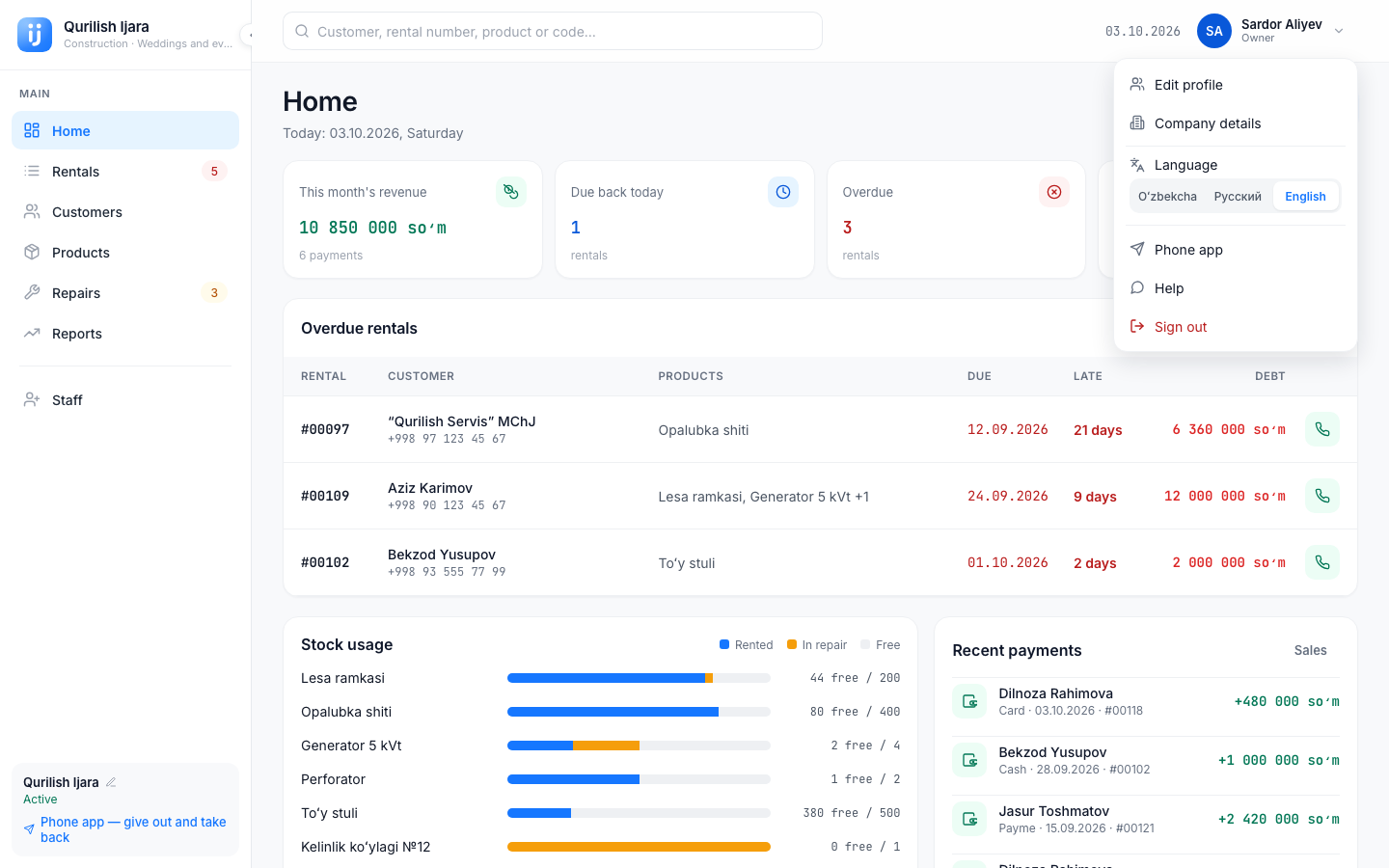
| Row | What it does |
|---|---|
| Edit profile | Your name, phone number, password and photo |
| Company details | Business name, logo, directions (owner only) |
| Phone app | Opens the phone app |
| Language | Oʻzbekcha, Русский, English |
| Help | Opens this guide in a new window |
| Sign out | Asks "Sign out?" |
Side windows
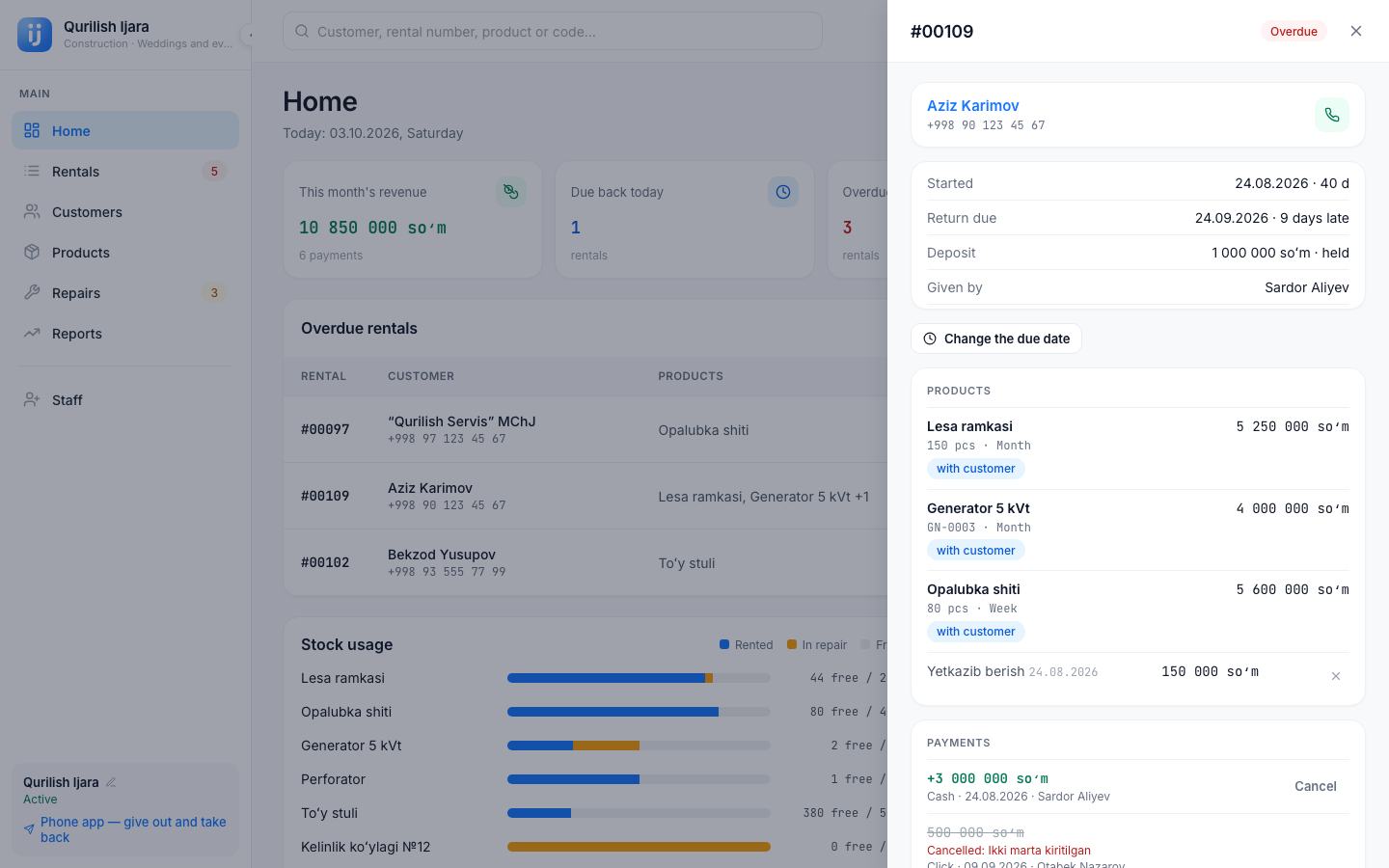
Instead of the separate screens on the phone, on the computer a side window slides in from the right side of the page: a rental, a customer, a product, a repair card, renting out and taking back. When a window is open, the page behind it stays in place. To close it, tap the ✕ in the window or the background behind it. The page address remembers the window, so you can copy the address and send it to a coworker.
Rentals
The Rentals page has a table of all rentals. You can view it in two ways: Table and Kanban (columns: Ongoing, Due today, Overdue, Closed).
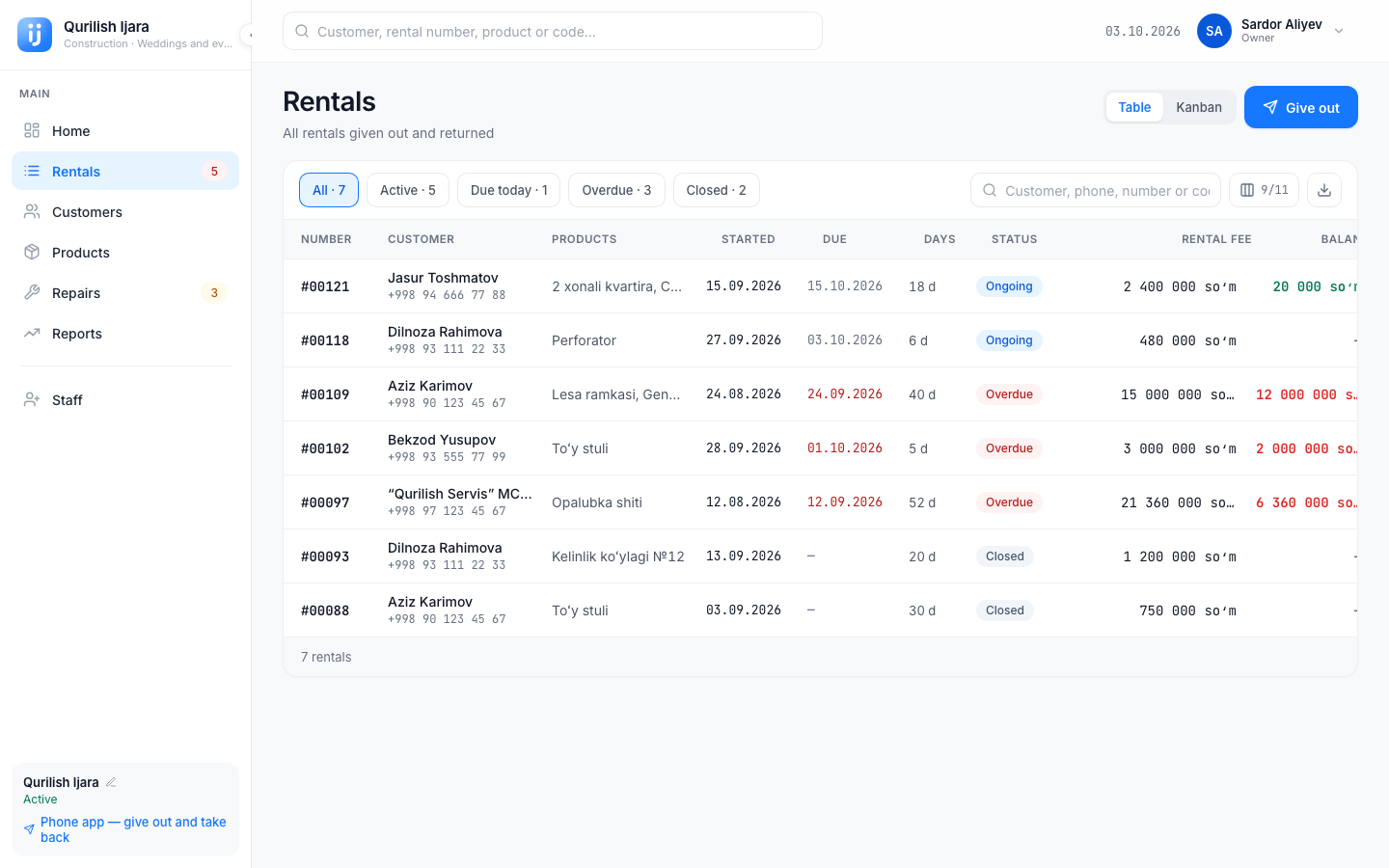
- Filter buttons: All, Active, Due today, Overdue, Closed.
- Search: Customer, phone, number or code.
- Tap a row and the Rental side window opens: from it you can accept a payment (Accept payment), add an Extra charge, change the date (Change the due date) and Return. Everything works as on the phone: Payments and debt, Taking back.
Columns
Tables have a Columns button. With it you can hide columns you do not need and change the order of columns by dragging ("Drag to change the order"). Reset puts everything back as it was. At least 2 columns must stay.
Downloading CSV
The Download CSV button saves the rows on the screen into a CSV file (it opens with Excel and Google Sheets). Only the rows you see on the screen right now go into the file: choose the filter you need first. For rentals it says "N rows exported to CSV", for reports "Report downloaded as CSV".
Renting out
The Give out button opens a side window. The sections are the same as on the phone: Customer, Products, Terms, Payment. The button at the bottom is Give out. Detailed steps: Renting out.
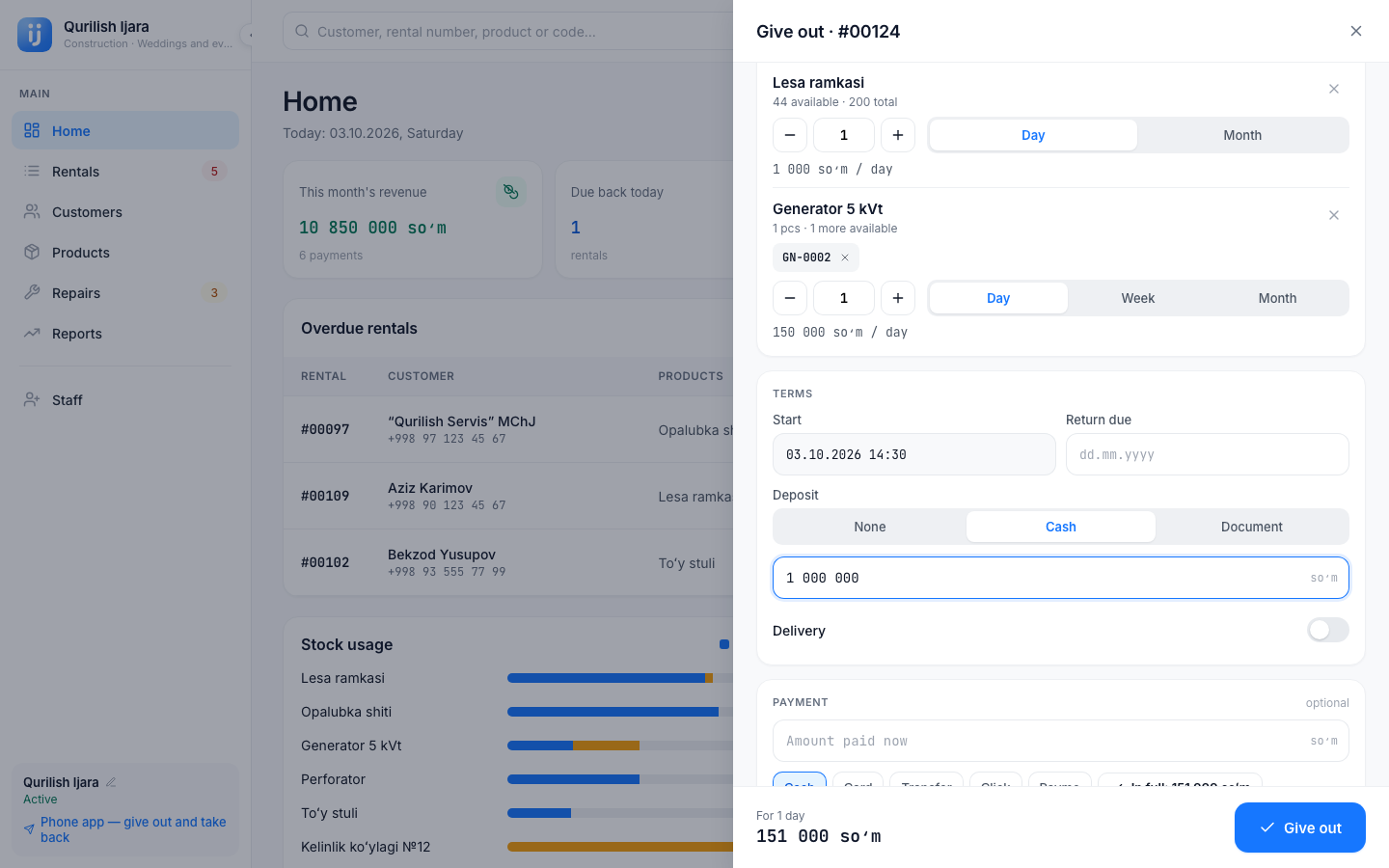
A computer has no camera, so the QR or barcode button activates the Name or code field. If a barcode scanner is connected to the computer, scan the product's label — the code is typed into that field. If there is no scanner, type the code by hand.
Taking back
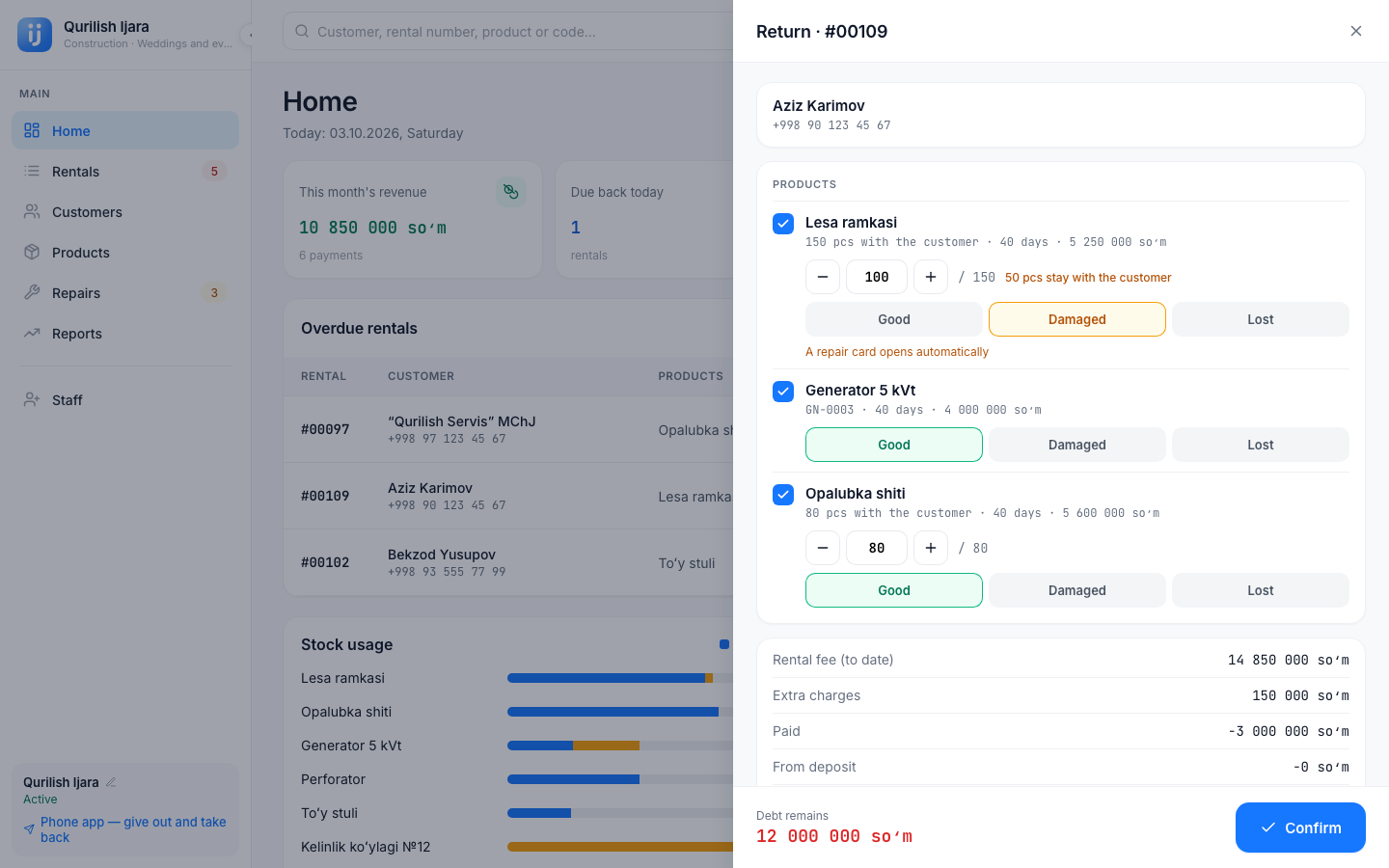
Taking back starts with the Return button in the rental window. Marking the products, the Condition, Discount, Deposit, Payment and Confirm — are the same as on the phone: Taking back.
Customers and Products
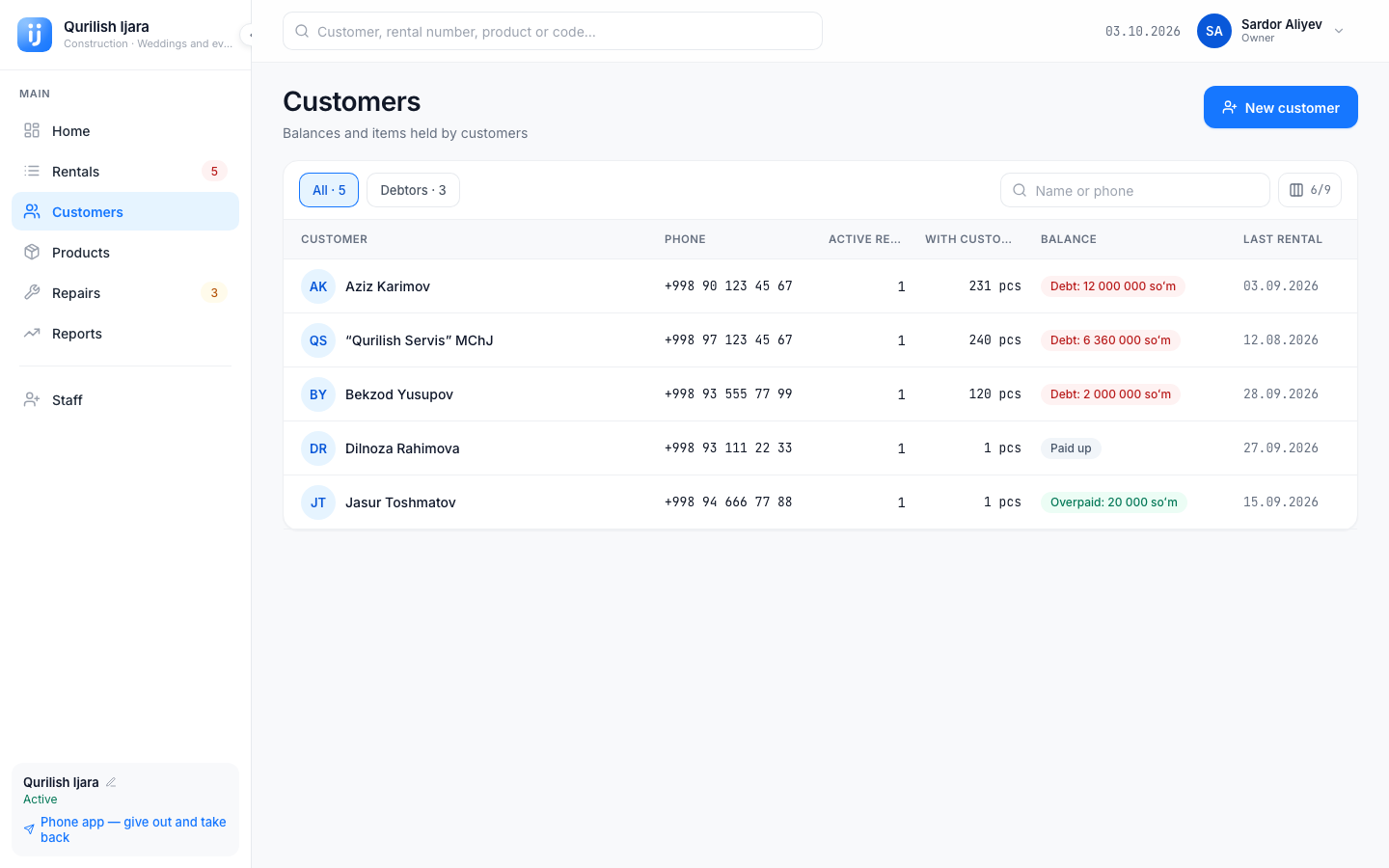
The Customers table has each customer's name, phone number, passport, active rentals, number of products with the customer, balance and last rental. Filter: All, Debtors. Tap a row and the customer card opens in a side window.
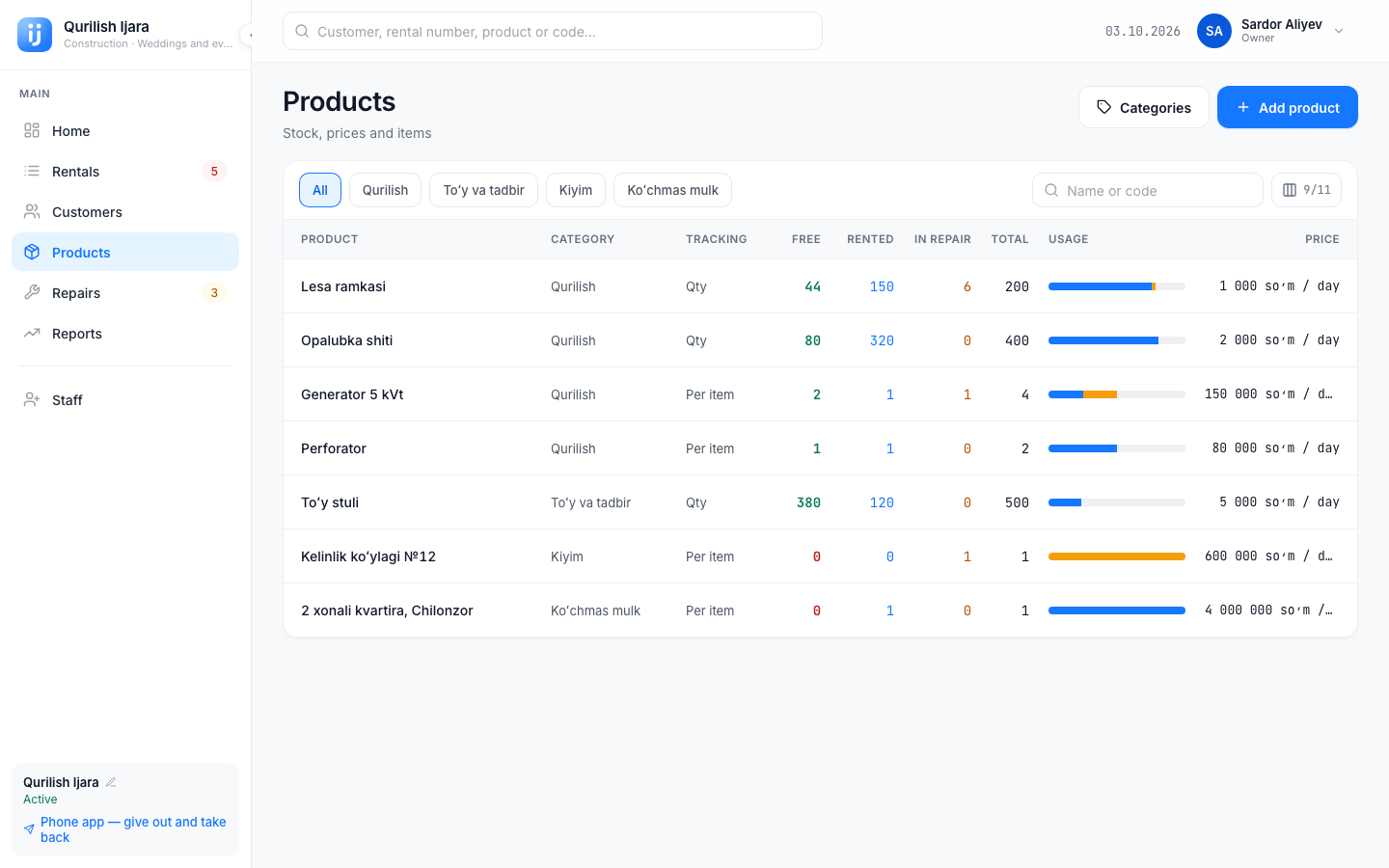
The Products table has Free, Rented, In repair, Total and a Usage bar for each product, plus prices and the If lost amount. The owner uses the Categories and Add product buttons at the top. QR labels → Print in the product window sends the labels to the printer. The rules are the same as on the phone: Products.
The repair board
On the computer, Repairs is a board with four columns. Drag a card from one column to another — its stage changes. At the top are the Total cost, Masters (the list of masters, owner only) and Send to repair buttons.
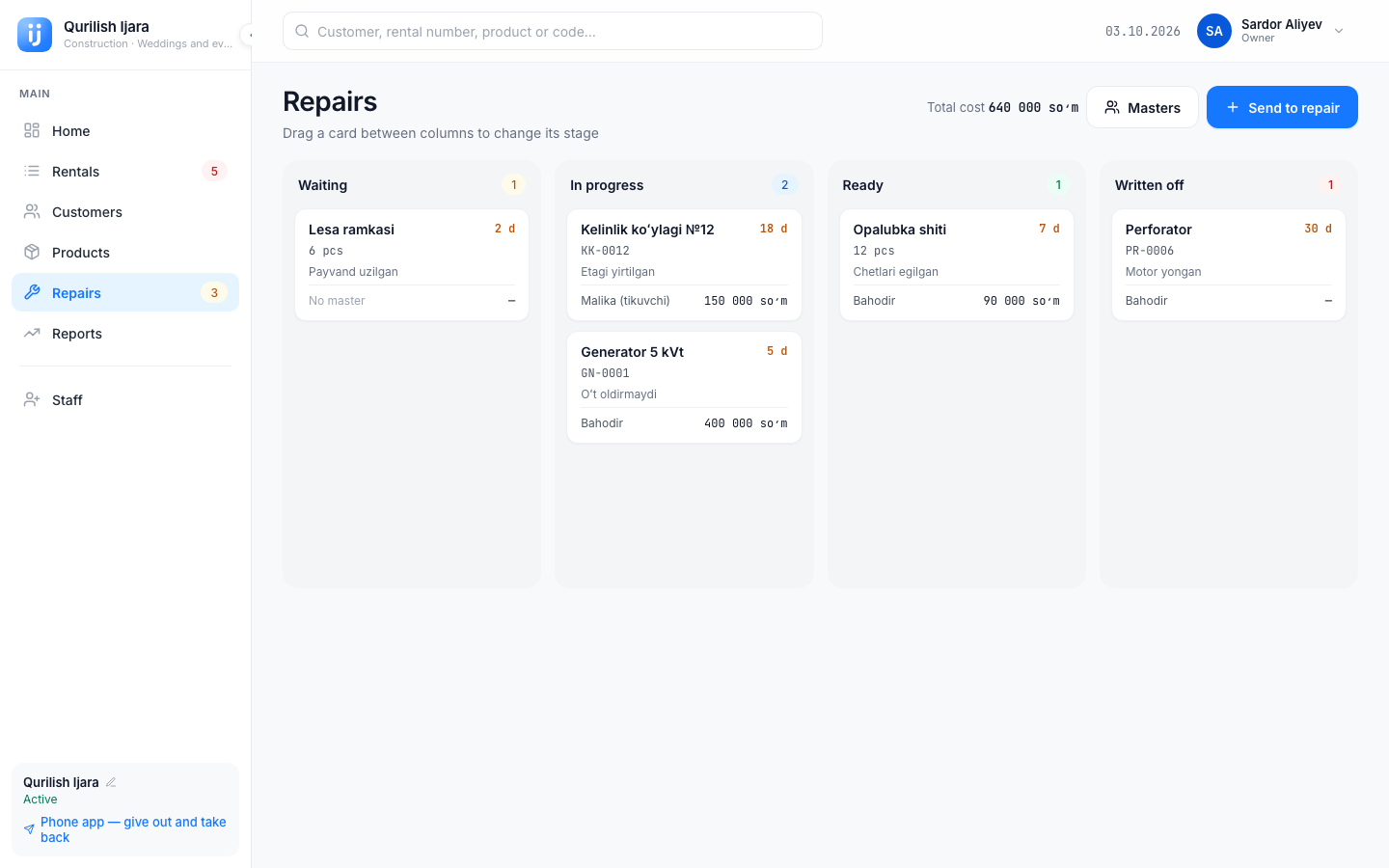
Some moves are not possible: "A written-off card cannot be changed", "The product is rented out right now — it cannot be sent back to repair". The meaning of the stages: Repairs.
Reports and Staff Owner only
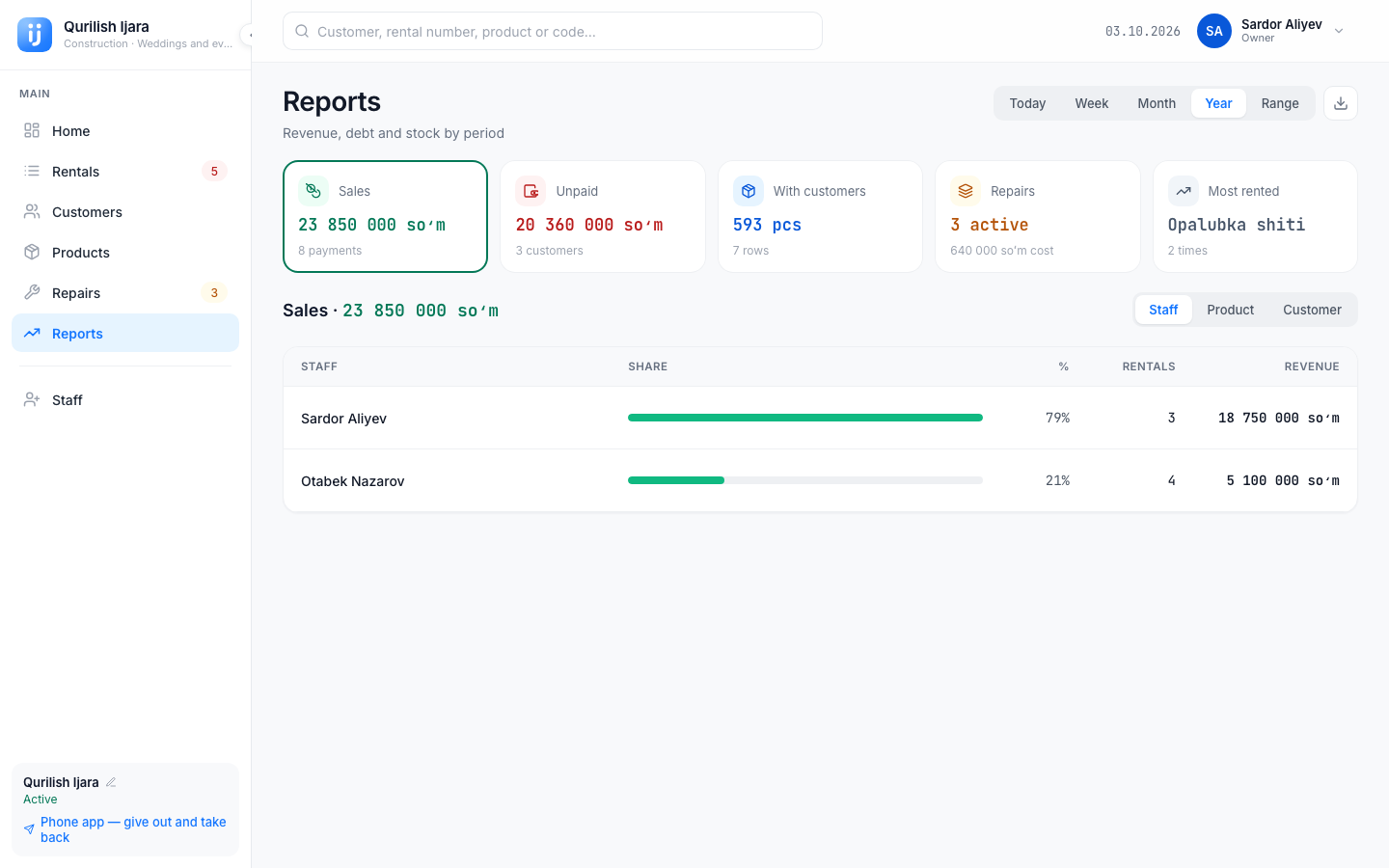
The Reports page has the period buttons and five reports: Sales, Unpaid, With customers, Repairs, Most rented. The report you choose opens below with a table. Contents: Reports.
The Staff table shows, for each staff member, Rentals (how many rentals they gave out), Accepted (how much payment they received) and Access (Active / Disabled). Add staff member adds a new staff member. Rules: Staff and roles.
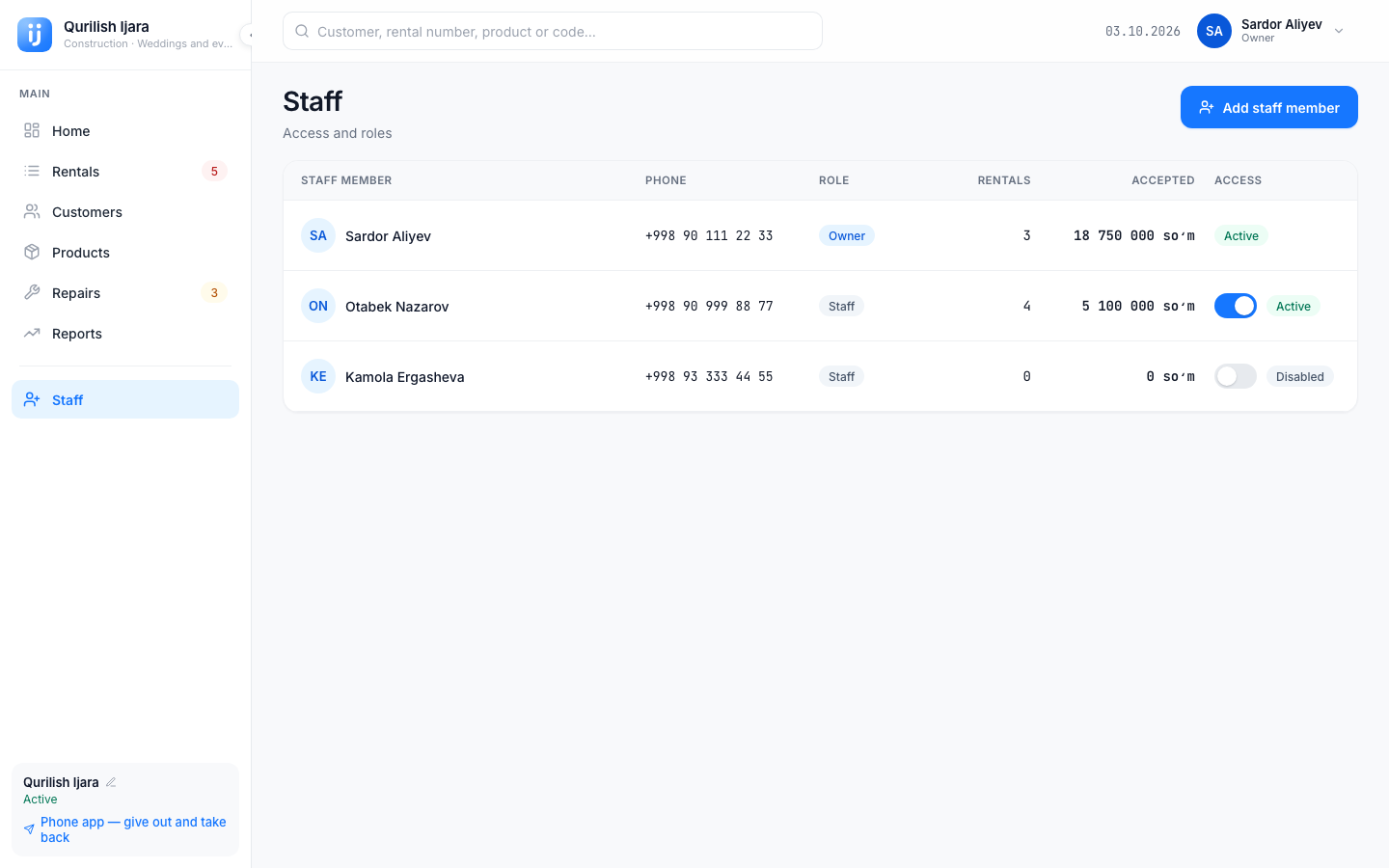
If you tap the owner's own row, it says "Edit the owner's profile in the phone app": change your own profile with Edit profile in the user menu at the top.
The computer for staff
For staff, the left menu has no Reports and no Staff. The Home page has only the Due back today and Overdue indicators, and the revenue and debt amounts are not visible. In products, staff do not see the Categories and Add product buttons, and in repairs they do not see the Masters button.
Differences from the phone
- No camera: you enter codes with a scanner or by hand.
- No swipe (call / SMS): the Overdue rentals table has a call button.
- You can download reports and lists as CSV.
- If the internet goes down, the message "No internet connection" appears at the top.