
Products
A product is something you rent out: a tool, a suit, a car, an apartment. The product list is in Menu → Products.
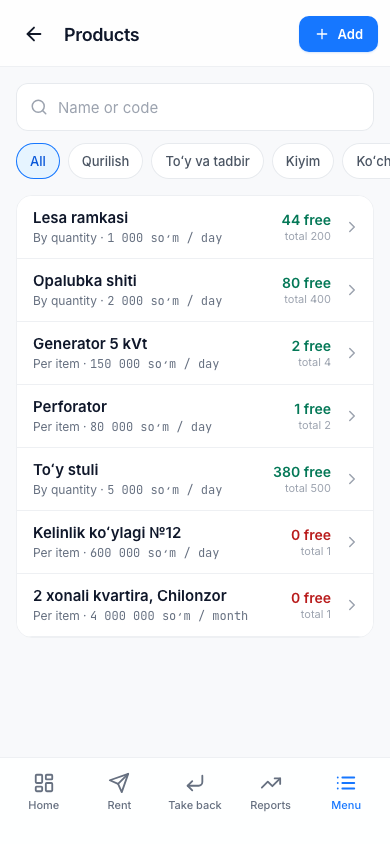
In the list, each product shows its name, its lowest price and a note "N free / total". To search, type in the Name or code field. To filter by category, tap the category buttons next to All.
Staff can view and search products and print QR labels. Adding, changing and deleting products is for the owner only.
Adding a product Owner only
- On the Products page, tap the Add button.
- Type the Name, for example "Scaffolding frame".
- Choose the Category. If the category you need is missing, tap New and create it.
- Choose the Unit of measure: pcs, m², set or meter.
- Choose the Tracking type (explained below).
- Enter the count.
- Enter the Prices: Day, Week, Month, Year. You do not have to fill in all of them, but you need at least one.
- If needed, enter Payment if lost (1 item): if the customer loses the product, this amount is added to the bill.
- Tap the Save button.
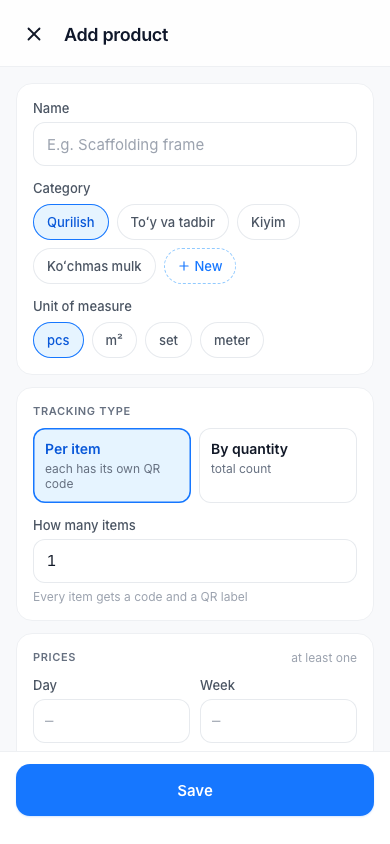
Tracking type: Per item or By quantity
| Tracking type | When to choose it | How it works |
|---|---|---|
| Per item | Each item must be tracked separately: a generator, a suit, a car, an apartment | You enter How many items. Each item gets its own code and QR label |
| By quantity | There are many identical things and counting them is enough: scaffolding frames, chairs | You enter Quantity (total). There are no codes, only the total count |
Warning
The tracking type cannot be changed after the product is created: "The tracking type cannot be changed after creation". Think carefully beforehand about which type to choose.
With per-item tracking, the code is made of the first two Latin letters of the product name and a number, for example GN-0001. If the name has no Latin letters, the code starts with MX.
You add an apartment or an office the same way: Per item, with the price by Month or Year.
Product statuses
The product page has three counters:
| Status | Meaning |
|---|---|
| Free | Can be rented out right now |
| Rented | With a customer |
| In repair | On the repair board |
With per-item tracking, each item has its own status: Free, Rented, In repair or Lost. With tracking by quantity: free count = total − rented − in repair.
A product that is rented, in repair or lost cannot be rented out — the app shows this on the Rent screen.
The product page
Tap a product in the list and its page opens: statuses, prices, the Items list (each with its code, status and who has it) and the Rental history.
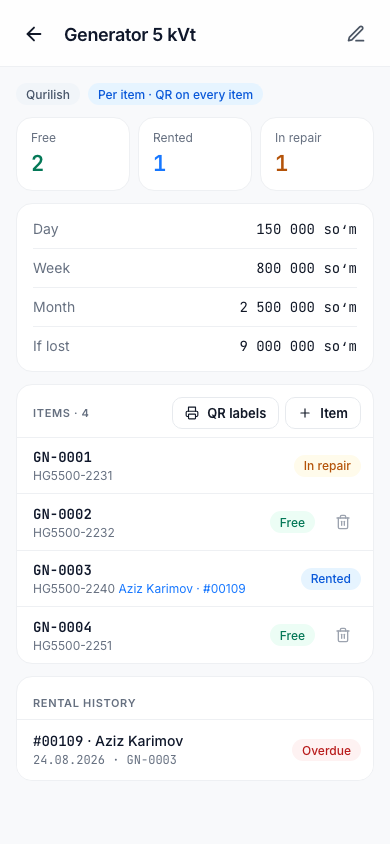
Here the owner can use:
- Edit — change the name, category, prices and count. You cannot make the count lower than the number of items that are rented or in repair;
- Item — adds a new item to a per-item product;
- Write off — marks a free item as lost ("Write off {code}?"). It no longer shows up on the Rent screen;
- Delete — deletes the product. It is possible only if the product was never rented out: "This product has never been rented out. This cannot be undone."
QR labels
You can print a QR label for each item of a per-item product. You stick the label on the product, and later, when giving out and taking back, you scan it with your phone camera — you do not need to type the name and code by hand.
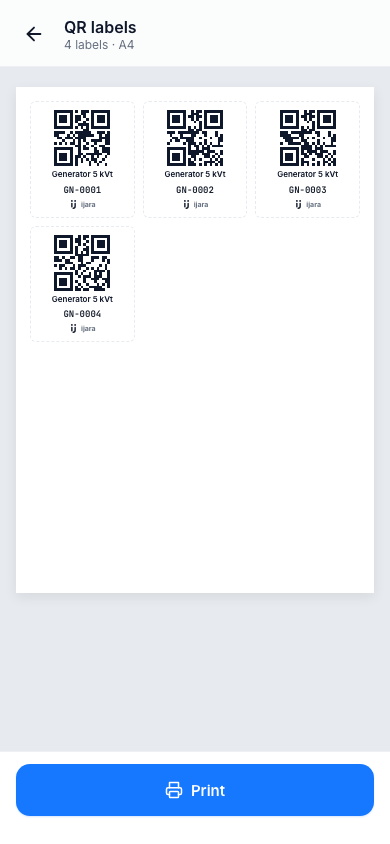
- On the product page, tap the QR labels button (for a product tracked by quantity — QR label).
- The labels appear on an A4 sheet. Tap the Print button — the browser opens the printer window.
To scan, the Rent, Take back and Send to repair screens have a QR or barcode button. The first time, the browser asks for permission to use the camera — allow it. If the camera does not open, type the code by hand using Search by code.
Categories Owner only
Categories are for grouping products. Menu → Categories.
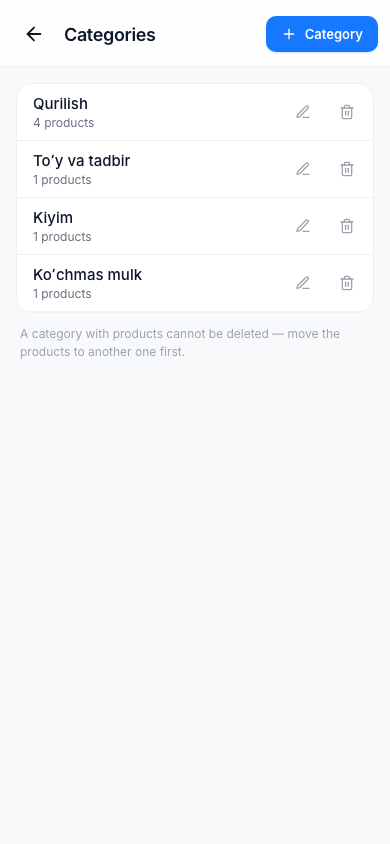
- Adding: the Category button → New category → Name → Add.
- Renaming: Edit on the row → the new name → Save. All products in that category move to the new name.
- Deleting: Delete on the row. You cannot delete a category that has products — "First move N products to another category".
Each row in the list shows "N products".