
Getting started
This page covers everything from signing in for the first time to the business settings.
Signing up
One person creates the business — that person becomes the business Owner. You add staff later.
- Open
app.ijarachi.appin your phone's browser. - The first time you open it, the Choose language screen appears. Choose a language and tap Continue.
- On the Sign in screen, tap the Sign up link.
- Fill in the fields:
- Business name — for example, "Qurilish Ijara";
- Your name;
- Phone number;
- Password — at least 6 characters.
- In the Which directions do you work in section, mark the directions you need: Construction, Weddings and events, Clothes, Cars, Real estate. Choose at least one.
- Tap Create business.
- The Confirm your phone number screen appears: a 6-digit code is sent to the Telegram linked to your number. Enter the code and tap Confirm and create — only then is the business created. If the code has not arrived: The Telegram code.
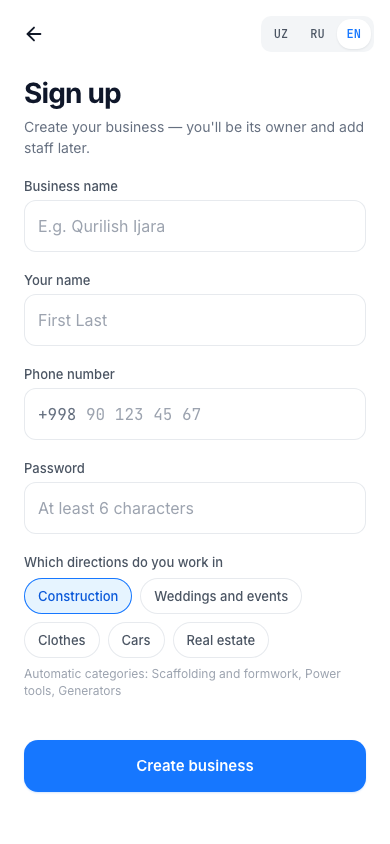
Based on the directions you choose, the app prepares the product categories for you — they appear in the "Automatic categories" line on the screen. You can change the categories later: Categories.
Warning
One phone number belongs to one account. If you see the message "This number is already registered. Sign in from the login page", do not sign up — sign in with Sign in.
Signing in
- Fill in the Phone number and Password fields. To see the password, tap the eye icon.
- Tap the Sign in button.
If you forgot the password, tap the Forgot your password? link: enter your number, type the code from Telegram, then enter the new password in New password and Repeat password and tap Save password and sign in. To sign in without a password, use the Sign in with Telegram button: enter the number and the code — the app opens. About the code: The Telegram code.
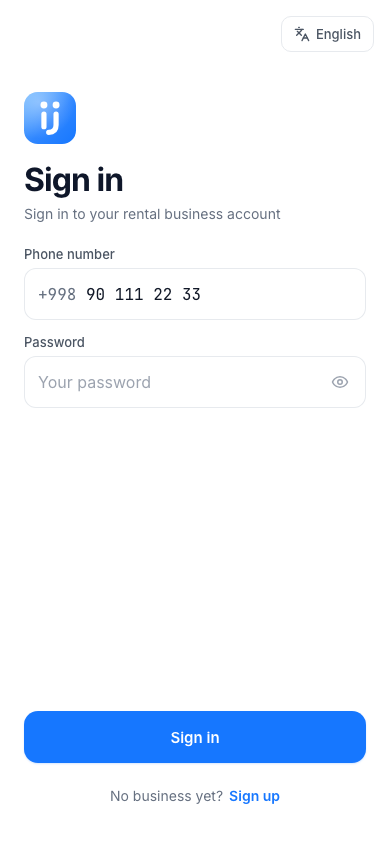
If you see "Wrong phone number or password", check the number and the password again. If you see "Your account has been deactivated. Contact the business owner", your owner has deactivated you. Other cases: Frequently asked questions.
The Telegram code
A one-time code is used when you sign up, reset the password and Sign in with Telegram. The code reaches only your Telegram — never share it. It is valid for 5 minutes, and you can ask for a new one after 60 seconds.
Our Telegram bot can write to you only after you have met. So the first time:
- The Connect Telegram block appears on the screen. Tap Open Telegram.
- The bot opens in Telegram. Tap Share phone number — share your own number (not someone else's contact).
- The bot writes "Your number is linked" and sends the code at once.
- Go back to the app, tap I got the code and enter the code.
Next time the code comes straight to Telegram. If it does not arrive, tap Resend code. The number must be the one of your Telegram account. This may not be switched on everywhere: if no code is asked for, the app works as before.
Changing the language
The app works in three languages: Oʻzbekcha, Русский, English. You can switch the language at any time:
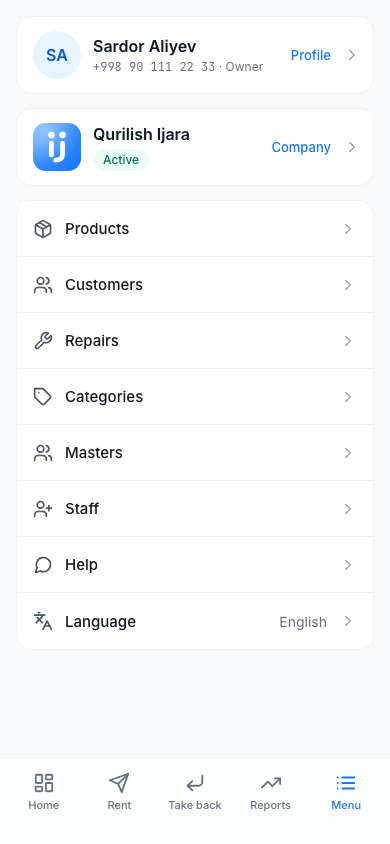
- Tap the Menu button at the bottom.
- Tap the Language row.
- Choose the language you want.
The sign-in screen also has a language button.
Add it to your phone's home screen
To open the app with one tap like any other app, add it to your home screen. Your browser does this, not the app:
- iPhone (Safari): tap the "Share" button, then choose "Add to Home Screen".
- Android (Chrome): open the browser menu (three dots), then choose "Add to Home screen".
The words in the browser menu may differ depending on your phone's language.
Your profile
You change your name, phone number, password and photo on the Profile page.
- Open Menu and tap your personal card at the very top (it shows your name and phone number).
- Change the fields you need:
- Profile photo — the photo shows in the menu and on the home page. Photo type: JPG, PNG or WebP, up to 5 MB. To delete the photo, tap Remove;
- Full name;
- Phone number;
- New password — leave it empty if you do not want to change it. The password must be at least 6 characters.
- Tap the Save button.
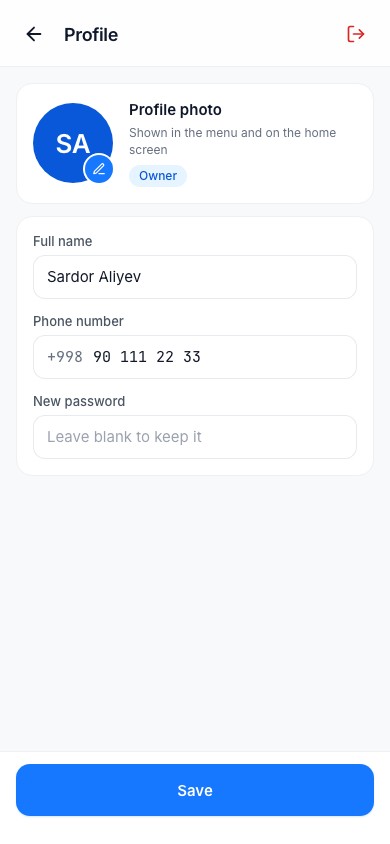
Signing out of the app. Tap the red icon in the top right corner of the Profile page. The app asks "Sign out?": Sign out — leave, No — stay. To sign in again you need your phone number and password.
Company details Owner only
- Open Menu and tap the company card at the top (it has the business name and logo).
- On the Company page, change:
- Business picture — the logo. Upload picture or Remove. It shows in the menu and on the sign-in page;
- Business name;
- Phone;
- Business type — the directions. If you choose a new direction, the "Categories added on save" line shows which categories will be added. If you remove a direction, the categories are not deleted.
- Tap the Save button.
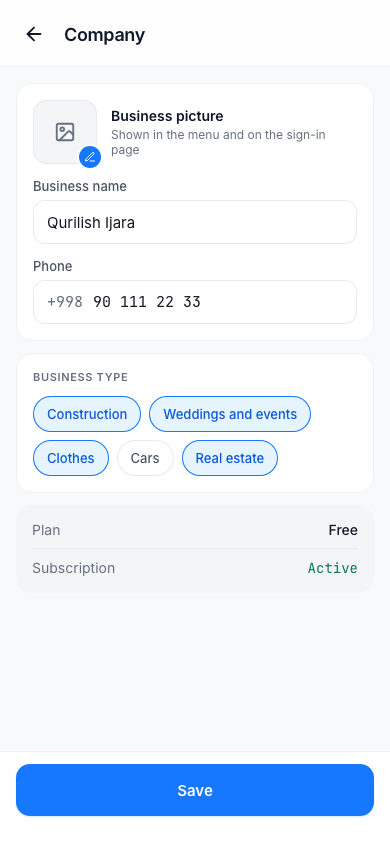
The page also has the Plan (Free) and Subscription (Active) rows — they are for information only, and you cannot change them.
If a staff member taps the company card, they see the message "Only the owner can edit the company".
Staff and roles Owner only
The app has two roles: Owner and Staff. Everyone you add becomes Staff.
Adding a staff member:
- Menu → Staff → Add staff.
- Enter the Name, the phone number and the Password (at least 6 characters).
- Tap the Add button.
The staff member signs in from their own phone with this phone number and password. You tell the password to the staff member yourself.
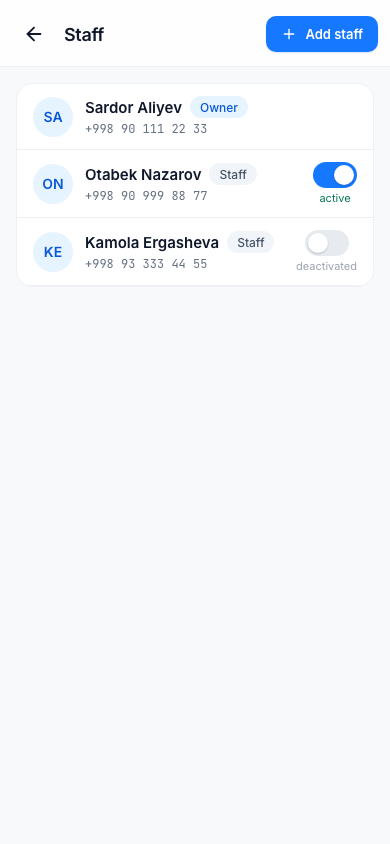
Changing a staff member. Tap the row in the list — the Edit staff window opens. To give a new password, fill in the New password (optional) field, then tap Save.
Stopping a staff member from signing in. In the list, the switch on the staff member's row changes between active and deactivated. A deactivated staff member cannot sign in to the app, but the rentals they gave out and the payments they accepted stay in the history. You can tap the switch again to activate them again.
Deleting a staff member completely. This is possible only if they have not yet worked with any rental or payment: Delete staff member. If they have history, the app reminds you: "This staff member has rental history — instead of deleting, deactivate them in the list (inactive)".
You cannot change or delete the owner.
Tip
If a staff member leaves, do not delete them — switch them to deactivated. That way their work stays in the reports.
The bottom menu
The bottom of the app has buttons:
| Button | Owner | Staff |
|---|---|---|
| Home | yes | yes |
| Rent | yes | yes |
| Take back | yes | yes |
| Reports | yes | — (Repairs instead) |
| Menu | yes | yes |
Inside Menu: Products, Customers, Repairs, Categories, Masters, Staff, Help and Language. Categories, Masters and Staff are visible only to the owner.
The home screen
The Home screen shows today's situation at a glance.
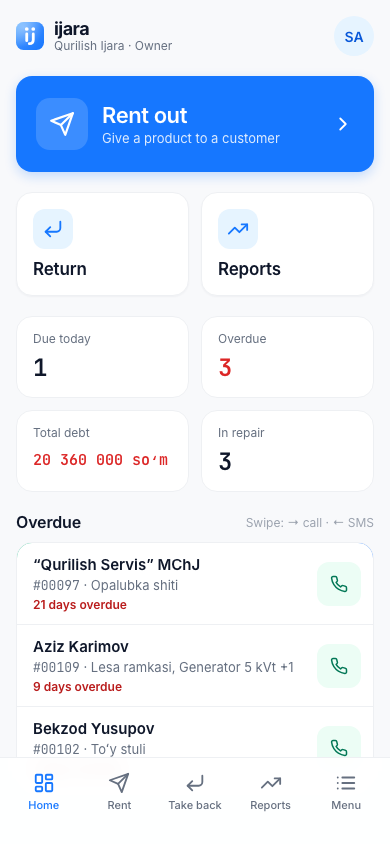
- The big blue Rent out button starts a new rental.
- Quick buttons Return and Reports (for staff — Repairs).
- Counters: Due today, Overdue, Total debt (owner only), In repair.
- The Overdue list: rentals whose return date has passed. To call the customer, tap the green button. Swipe a row right to call, left to send an SMS (your phone's SMS app opens with a ready text, and you send the message yourself).
In a new business, the Home screen shows a "Let's get started" card (for the owner only): first Add product, then First rental.
Help
This guide is also inside the app: Menu → Help.